For a Mac full of apps
Remember the work. Forget the location.
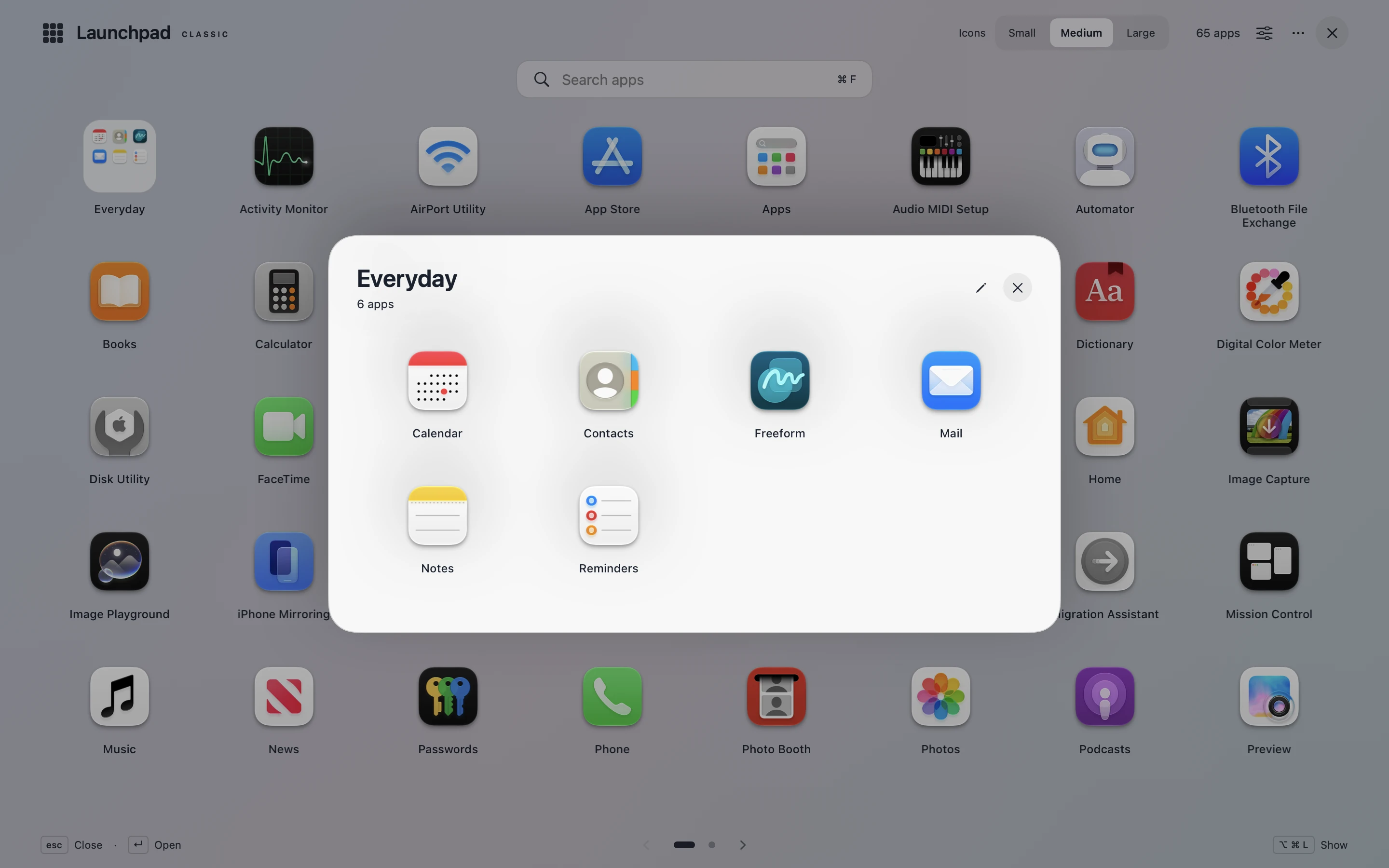
Keep design tools together, put everyday apps first and give occasional tools a home. Your layout becomes a map of your work. Rearranging it never moves the apps on disk.
 Launchpad ClassicmacOS
A crowded Dock. An app you only use occasionally. A name you almost remember. Give your Mac a full-screen app library that follows the way you think — with folders, search and four ways to see everything.
Assign trackpad gestures to Launchpad Classic or any other app with Gesture Launcher.
macOS 14+ · Apple Silicon · v0.1.1 · ZIP
Pinch and spread use four or five fingers; swipes use four. Disable the same gesture in macOS Trackpad settings and Launchpad Classic if it is already enabled there, to avoid duplicate actions.
Open the launcher with your chosen F-key. It appears on the screen under your pointer.
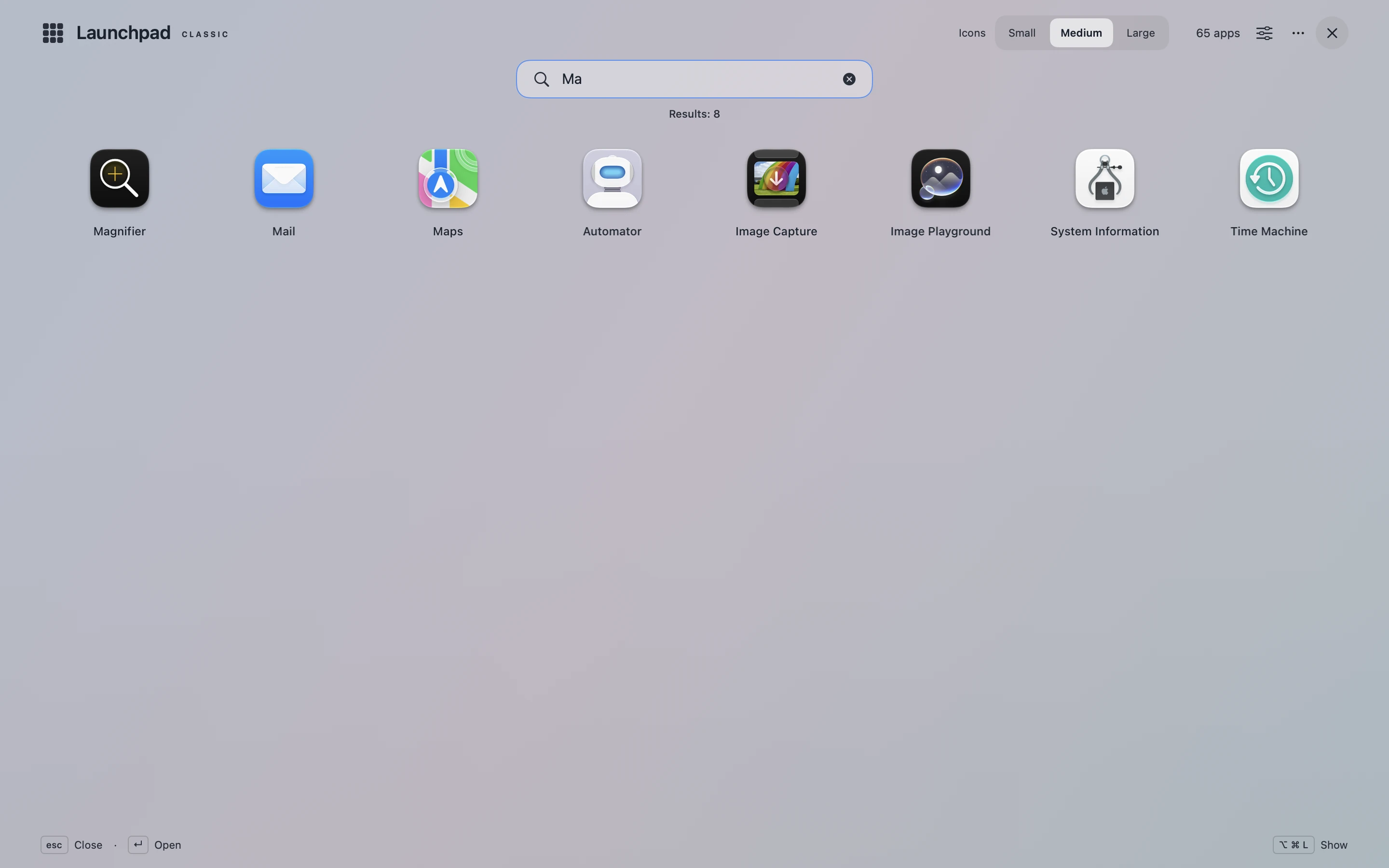
Type its name, choose a folder or browse by category. Search reaches inside folders, too.
Click the icon or use the arrow keys and Enter to launch it.
For a Mac full of apps
Keep design tools together, put everyday apps first and give occasional tools a home. Your layout becomes a map of your work. Rearranging it never moves the apps on disk.
For the way you navigate
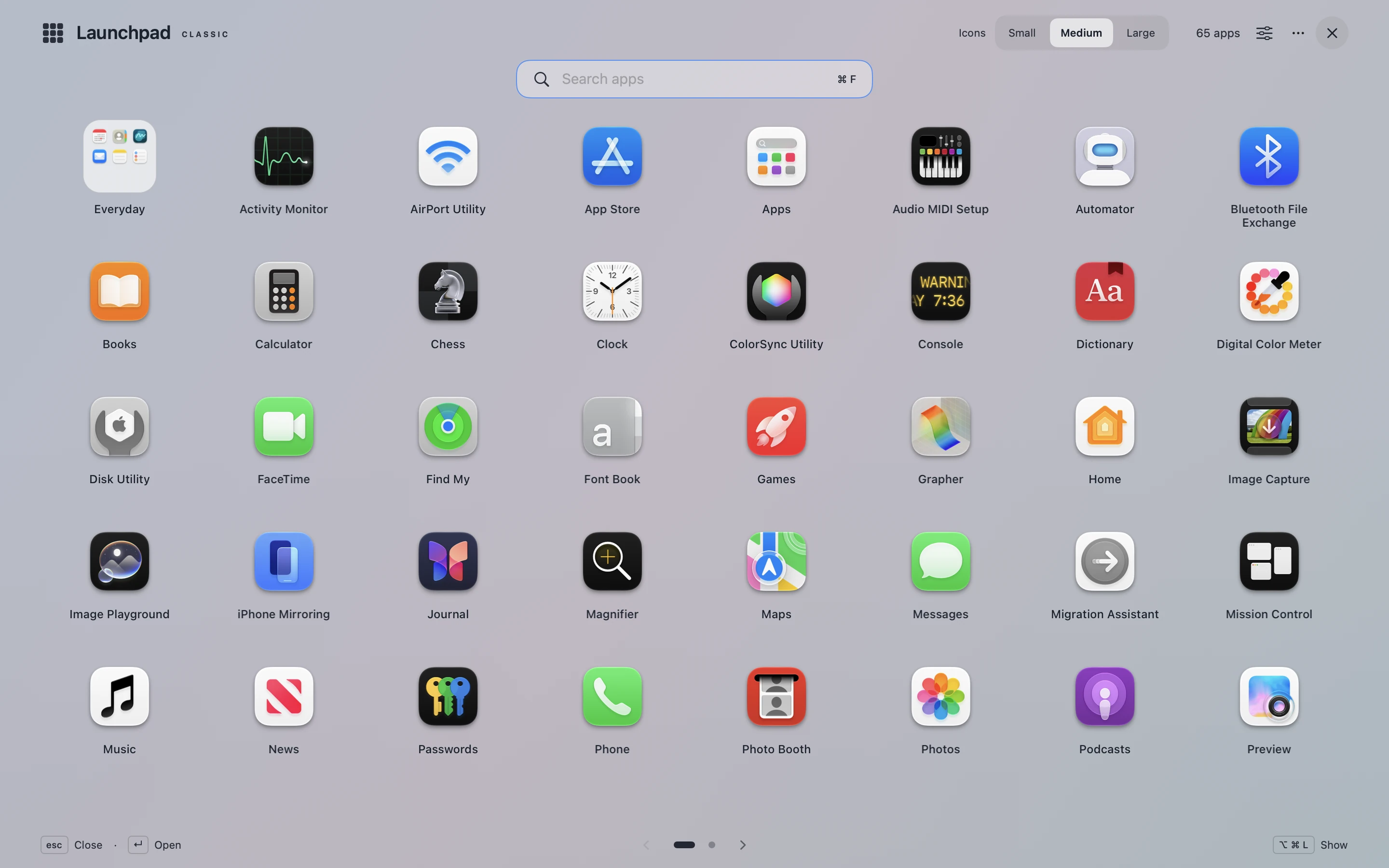
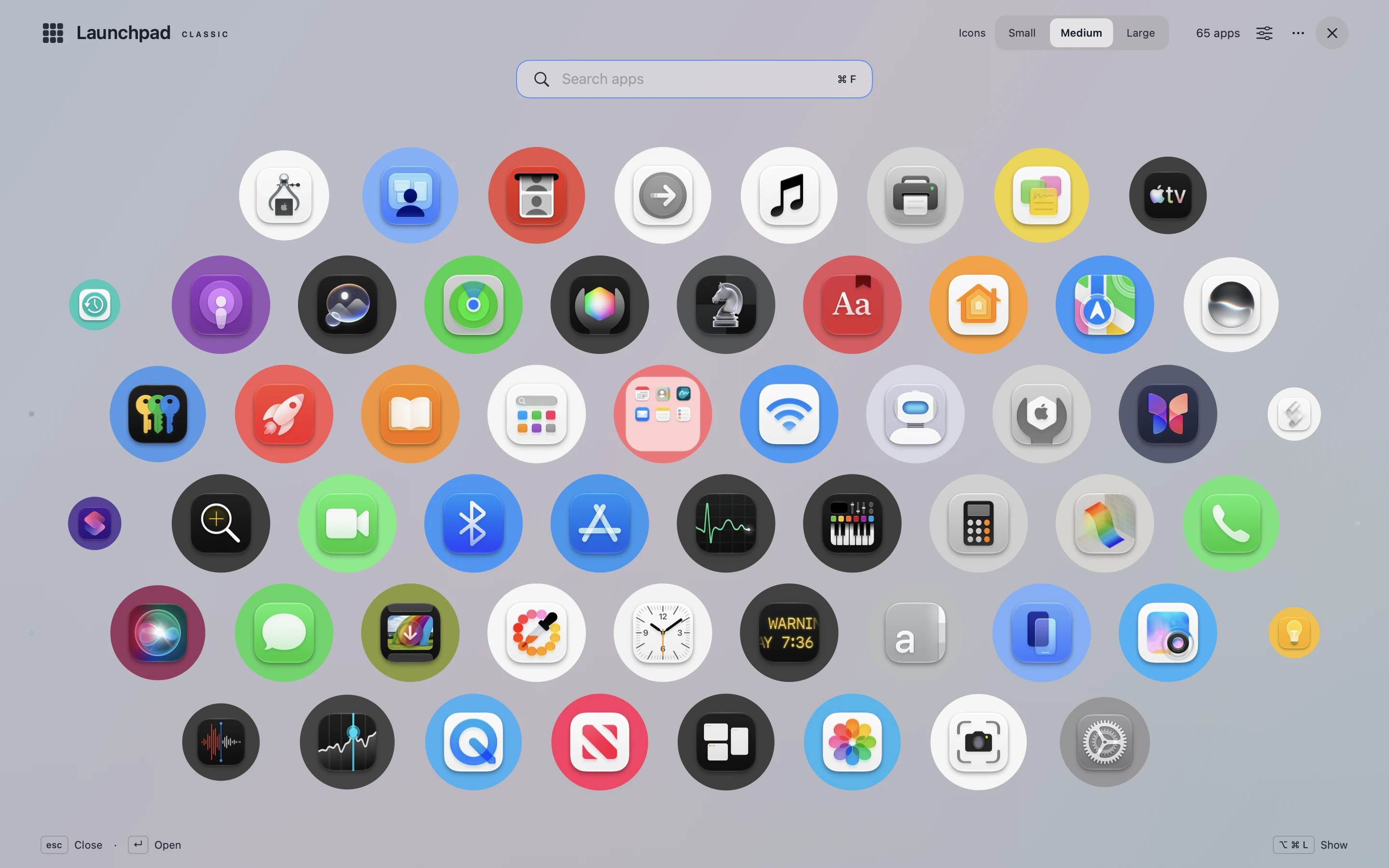
Classic, Watch, Tiles or Library: choose how you want to browse. Change the view when your habits change. The same apps stay available in every view.
For your screen and your eyes
Choose icon size and theme, arrange pages and tune transitions. Prefer less movement? Turn animations off; the macOS Reduce Motion setting also takes priority.
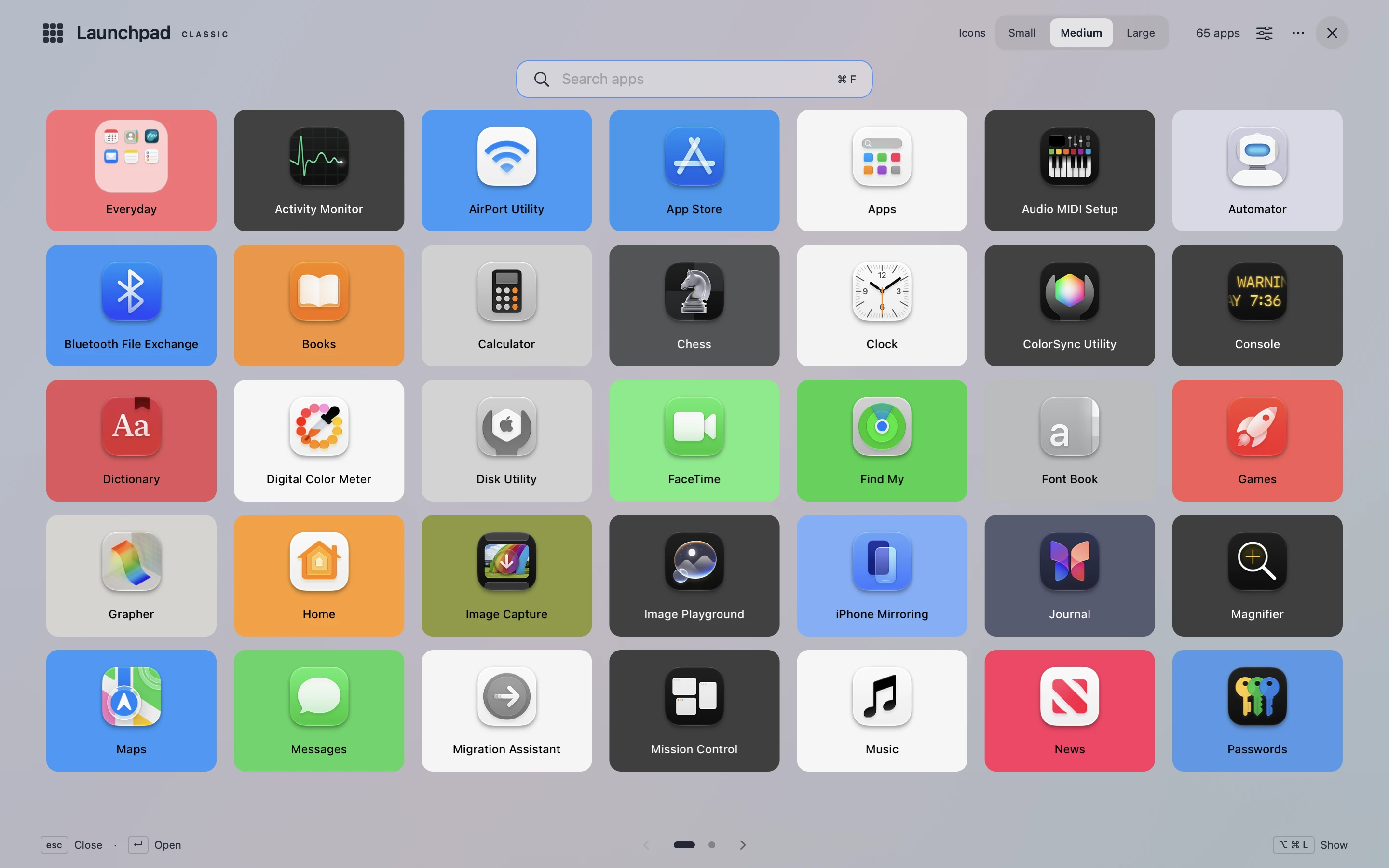
Browse applications discovered in the standard Mac application folders. Open an app from its icon or refresh the catalogue when you add something new.
Search by an app’s displayed name, file name or bundle identifier. Search results include apps organised inside folders, so you do not have to remember where you put them.
Create a folder by grouping app icons, then name it for the way you work. Add or remove apps, change their order inside the folder and dissolve the group without moving or deleting the actual applications.
Drag icons into your preferred order and move them between pages. Your layout is saved, while cancelling an unfinished drag restores the original arrangement.
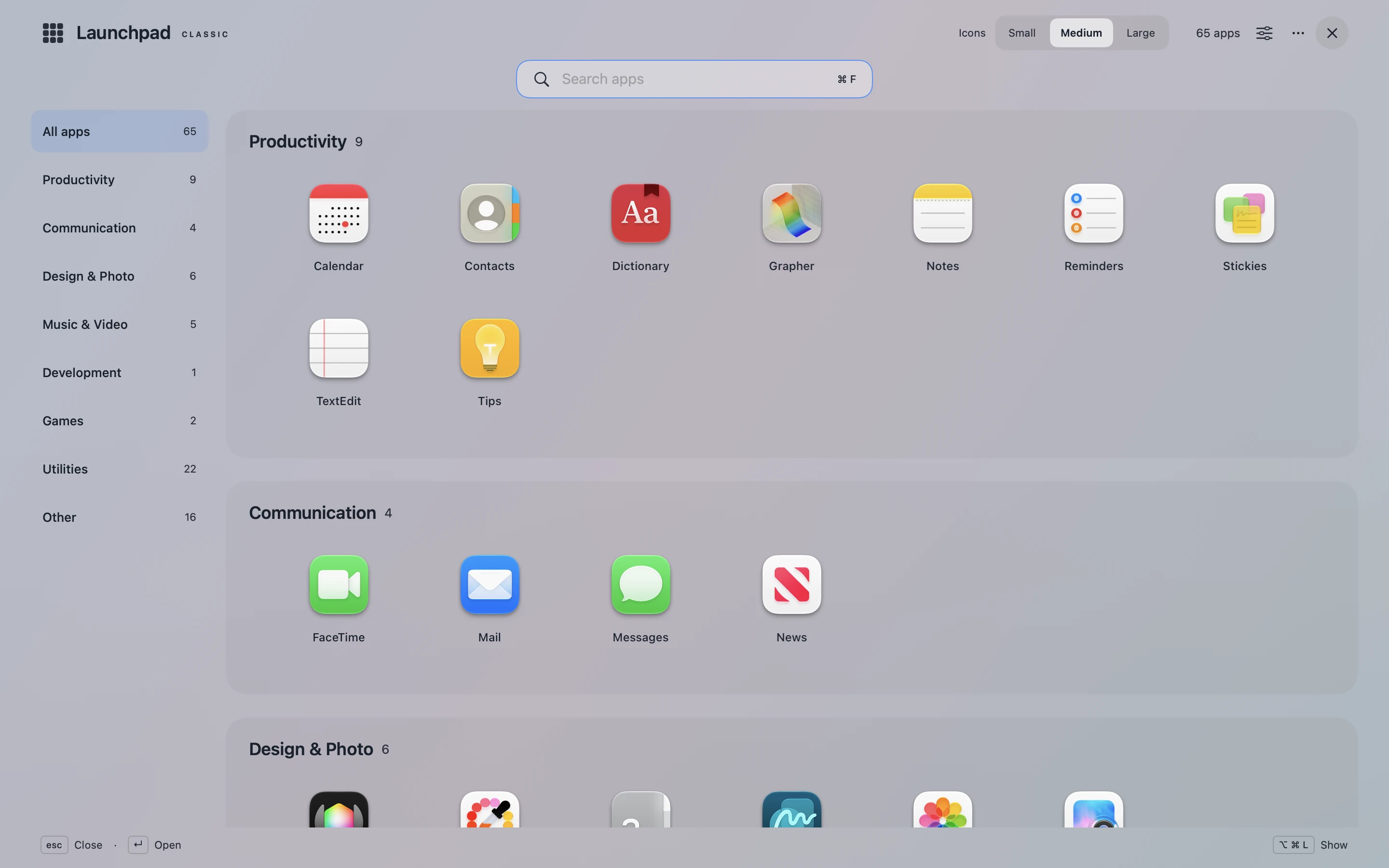
Switch between Classic, Watch, Tiles and Library views. The same app catalogue stays available while you choose the presentation that suits your screen and browsing habits.
Library view groups apps into categories such as productivity, communication, creative work and development. You can filter by category and change an app’s category when a different group makes more sense to you.
Choose small, medium or large icons and use a light, dark or system-matched appearance. The grid adapts its rows and columns to the available screen area, including inside folders.
Choose Classic, Slide, Zoom or Cascade transitions for paged layouts, or turn transitions off. Three speed settings let you adjust the pace, while macOS Reduce Motion takes priority over app animation settings.
Choose an F1–F12 shortcut with optional modifiers to open the launcher, then use arrows and Enter to select an app. Launchpad Classic opens on the display under your pointer; an optional trackpad pinch can also show or hide it on supported hardware.
No. Folders and ordering belong to the launcher. Your installed apps stay in their original locations.
Yes. Choose an F1–F12 shortcut, with optional modifiers, then navigate with the arrow keys and Enter.
No. Set up your layout in Launchpad Classic. It does not import the old system Launchpad database.
Explore the views, find your starting point and see how your next app could be just a search away.
Explore the four views
Copy. Find. Paste.
Clipboard history for Mac with search and collections.

Your keys. Your actions.
Assign actions to the F1–F12 keys on your Mac.