For your daily starting points
Put the next step within reach.
Open a working folder, launch a familiar app or run a named Shortcut. Choose actions from your actual routine. Start with one useful key and build your row from there.
 Button LaunchermacOS
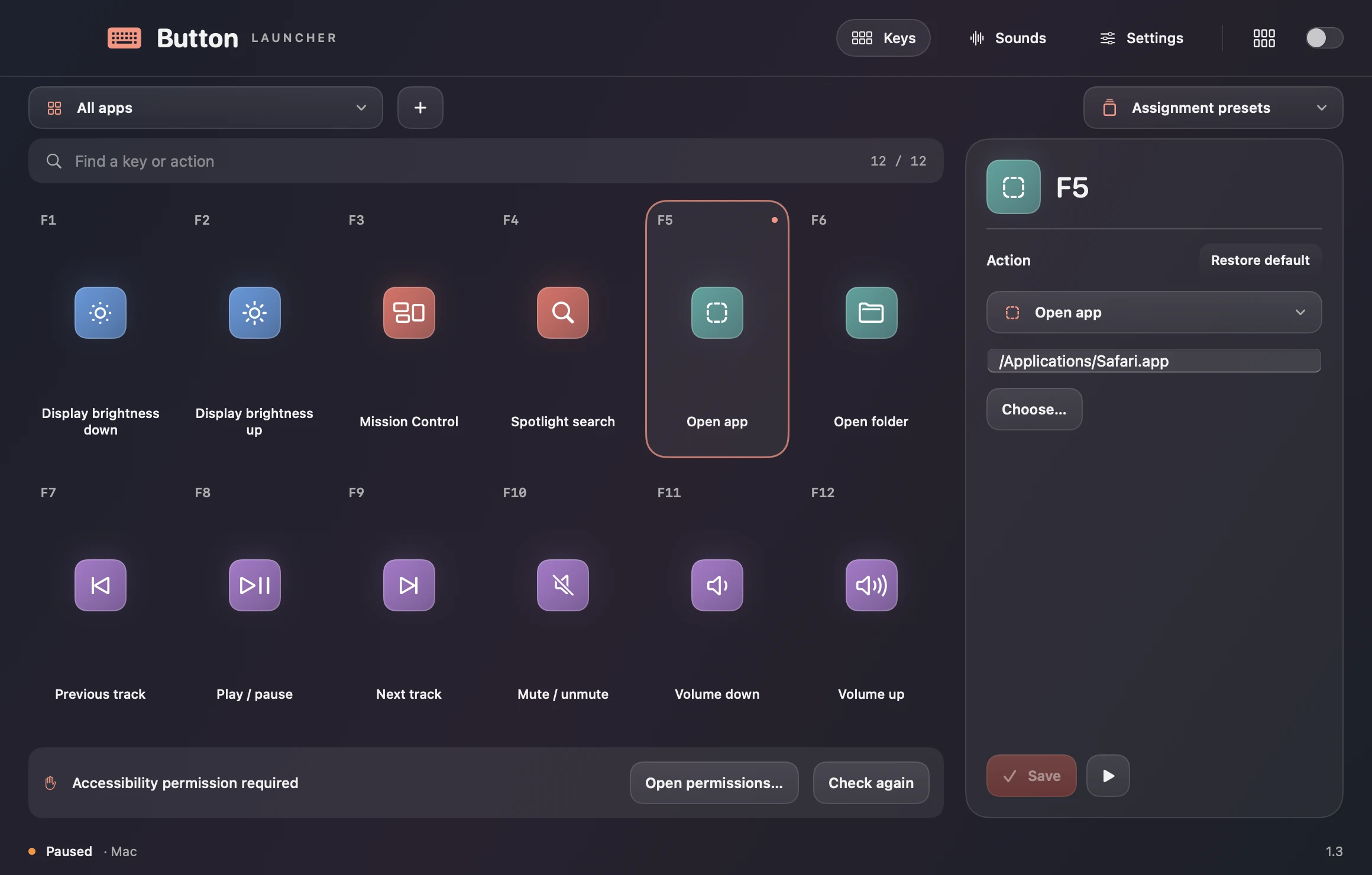
Open the project folder. Run a shortcut. Bring up your usual app. Turn F1–F12 into a row of actions built around your work — and let the assignments change with the app you're using.
Start with F1–F12. Assign an app, folder, website, Shortcut or system action.
Keep a global assignment or customise it for a particular app. The matching profile activates automatically.
Use the key, or open the palette to see and run the current assignments.
For your daily starting points
Open a working folder, launch a familiar app or run a named Shortcut. Choose actions from your actual routine. Start with one useful key and build your row from there.
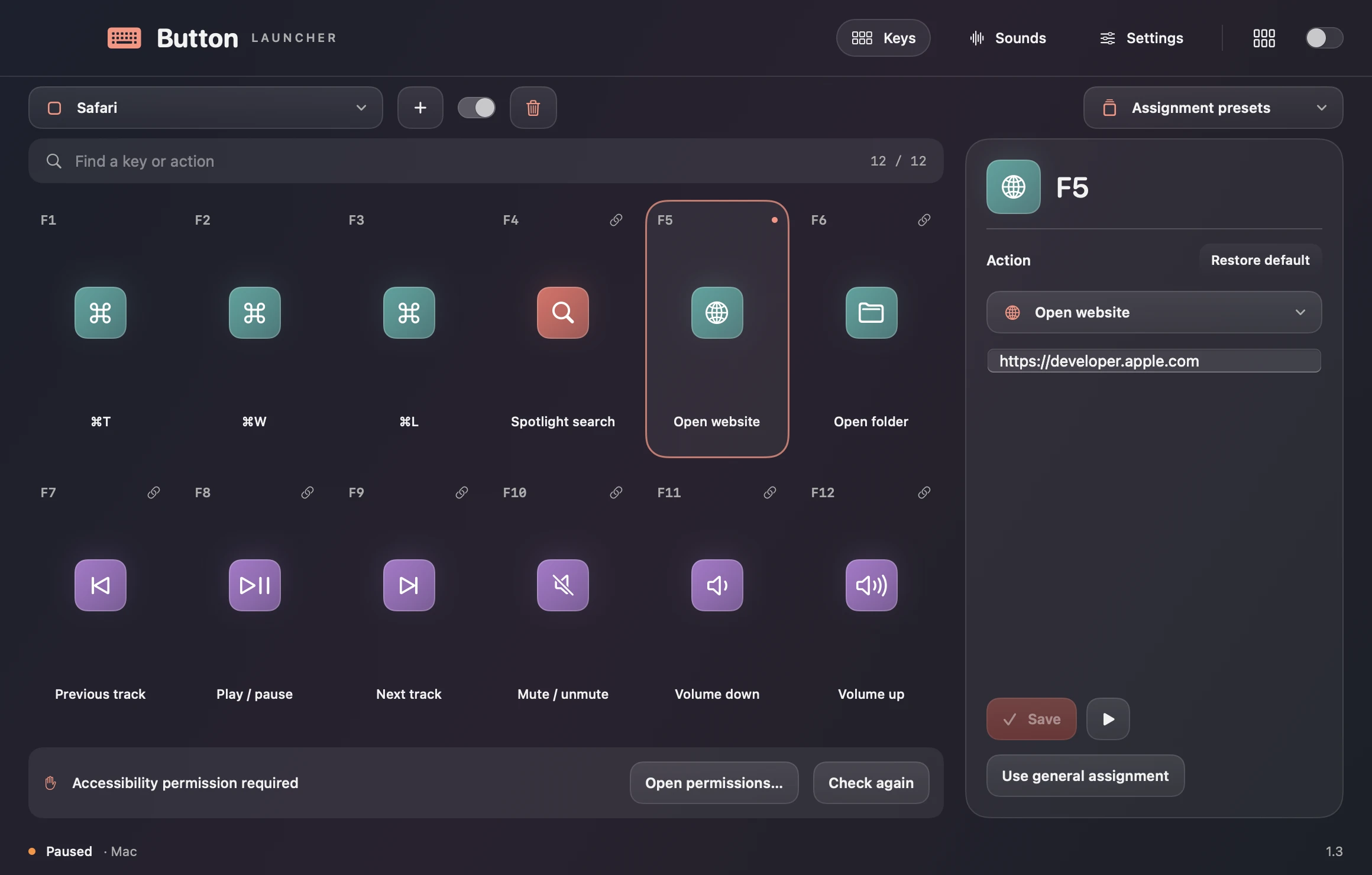
For switching between tools
Your editor and browser don't need the same shortcuts. Give each its own profile. Unassigned keys inherit the global profile, so you only change what needs to be different.
For a setup that feels like yours
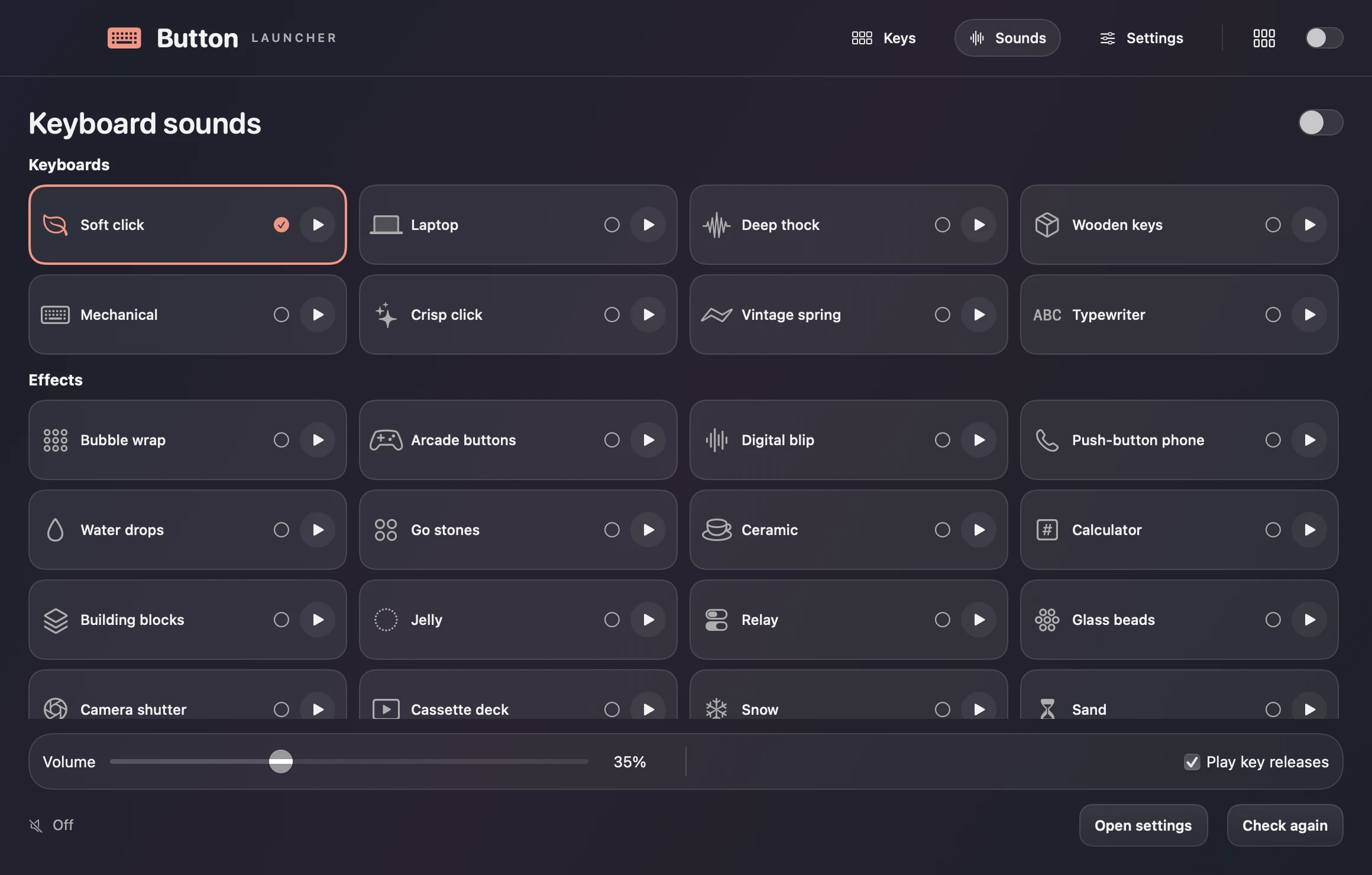
Preview typing sounds and set their volume. Export your profiles for later. When a key needs its original job again, restore standard macOS behaviour.
Assign an F-key to open an application, reveal a folder in Finder or visit a website in your default browser. You can also run a named Apple Shortcut from the same row.
Create an app-specific profile that becomes active when that app is in front. Unassigned keys inherit your general profile, so you can change only the commands that need to be different.
Record a keyboard combination and assign it to a function key. Button Launcher sends that combination to the active app, making frequently used commands easier to reach.
Choose actions for screen brightness, volume, mute and music playback. Add Mission Control, Spotlight, the desktop or the macOS screenshot toolbar to keep common system actions close at hand.
Apply a preset to the selected profile and adjust individual keys afterwards. Restore a key or the entire profile to its normal macOS behaviour when you want the original keyboard functions back.
Open the F1–F12 palette to see the assignments for the app you are using. Click an action in the palette or use its function key without changing the focus of your working app.
Export your assignments and profiles as a JSON file, then import them when you need to restore or transfer your setup. Import asks before replacing your assignments and saves a backup of the previous settings.
Choose a keyboard sound, instrument or effect and preview it before turning it on. Adjust its volume and choose whether key releases make a sound too.
The optional local AI connector lets supported assistants read and update key assignments, profiles and presets. You control whether that access is enabled; the connector changes settings without executing the assigned actions.
No. Start with the global profile. An app profile only needs the keys you want to override.
Yes. Restore standard behaviour for a key or profile. Export settings to JSON; importing asks for confirmation and backs up the previous settings.
The optional local connector can read and change assignments and profiles. It does not execute the assigned actions.
Find its place on F1–F12. Then build a keyboard that fits the way you work.
Explore key assignments
Your apps. Your order.
An app launcher for Mac with search and folders.

Copy. Find. Paste.
Clipboard history for Mac with search and collections.