For recurring work
Build a shelf of things worth keeping.
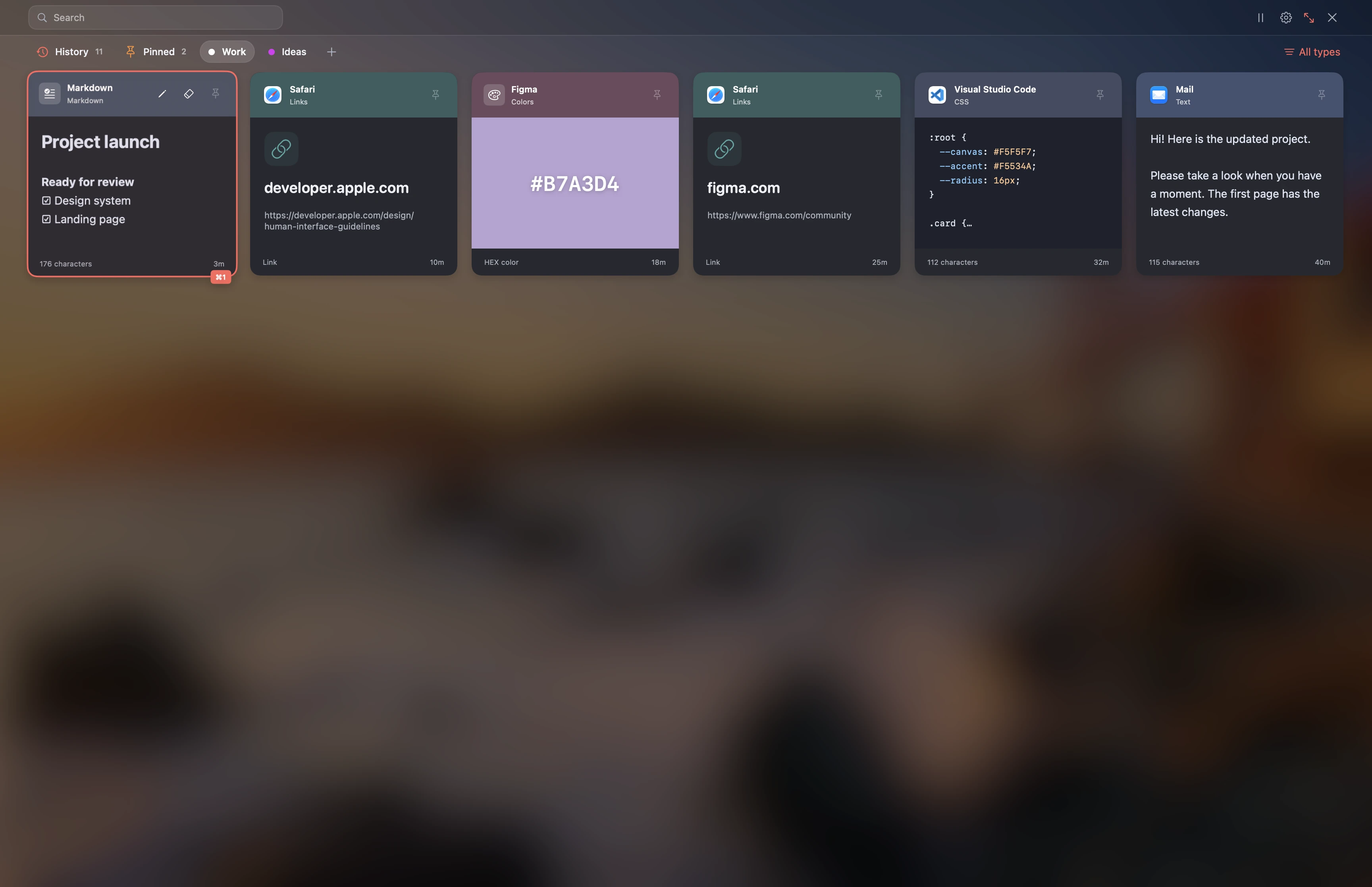
Replies, project links, references and text fragments deserve more than a second search. Pin the essentials and group material into collections. One item can belong to several projects.
 Super PastemacOS
The link is in one app. The wording is in another. And your clipboard has already moved on. Super Paste keeps copied material in a searchable library so you can pick up the useful part and keep going.
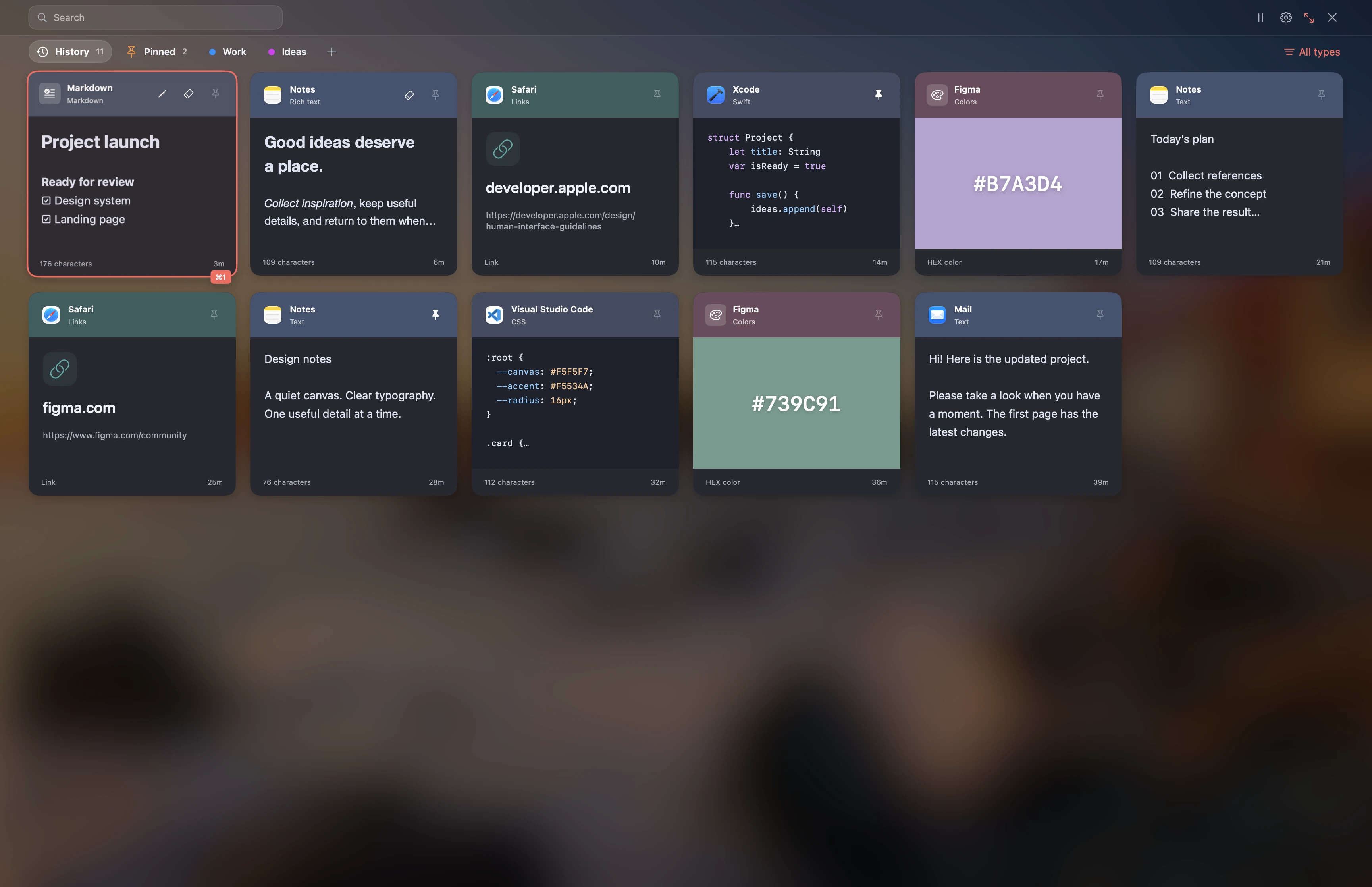
Text, links, images and Finder file references join your clipboard history.
Search by content, source app or type. Use pinned items and collections to narrow it down.
Keep the original formatting or use Shift–Enter for plain text.
For recurring work
Replies, project links, references and text fragments deserve more than a second search. Pin the essentials and group material into collections. One item can belong to several projects.
For writing and code
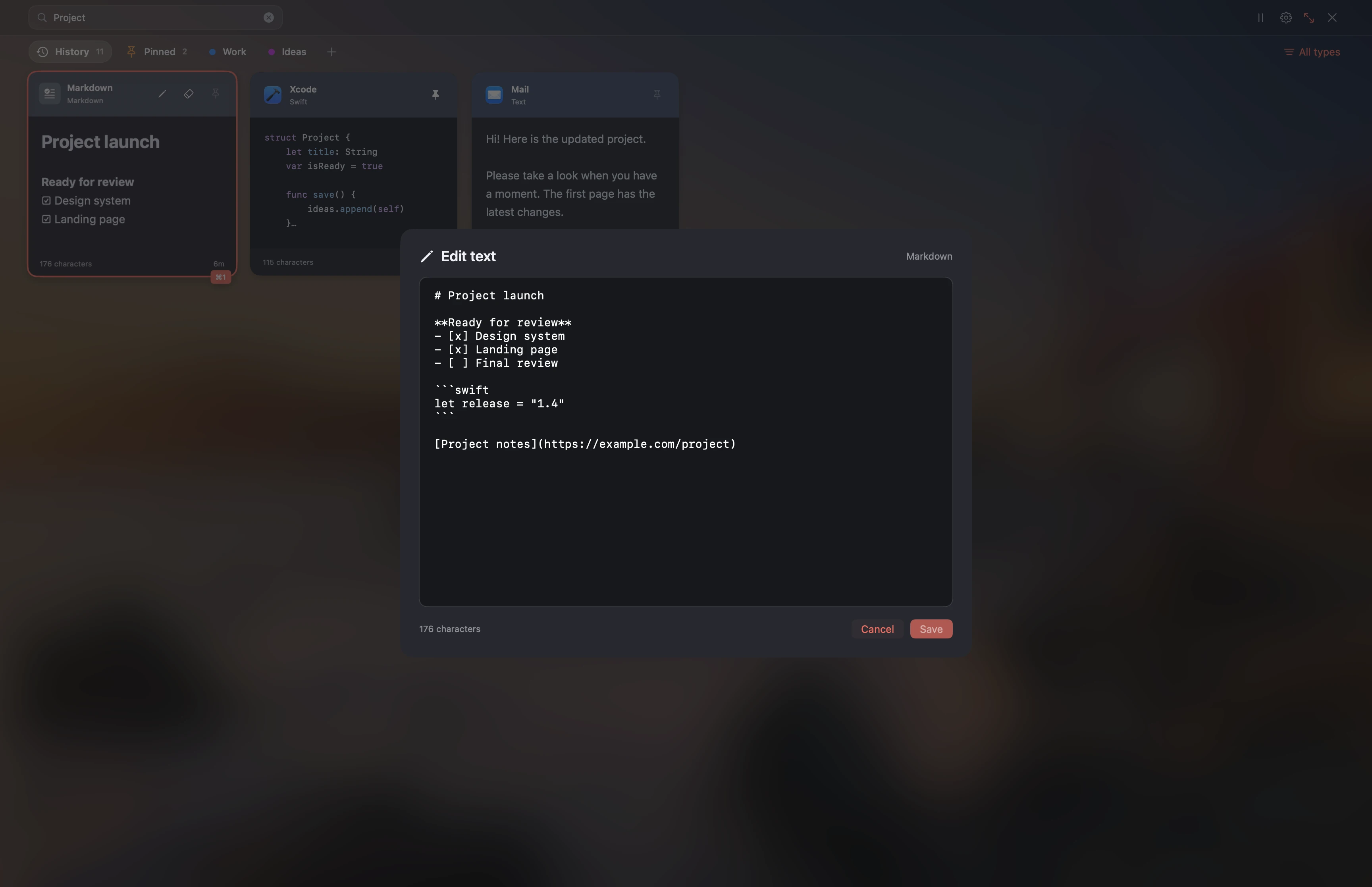
Read Markdown with formatting, get back to the source or copy rich text. Edit a saved fragment before reusing it. Keep the content you need without dragging unwanted formatting along.
For work in motion
Use the full view to browse, or put a compact panel along an edge. Preview with Space and paste the first nine items with Command–1 through Command–9.

Keep copied text, links, images, rich text and Finder file references in one history. Recopying an existing item brings it back to the top, while preserving its place in your collections.
Search saved content, source app names and content types from the same search field. Combine a search with a type filter, pinned items or a collection to narrow the results.
Pin items you use often and organise related content in named collections. One item can belong to more than one collection, and removing a collection leaves its items in your history.
Paste the original formatting or use Shift–Enter for plain text. You can also remove formatting from a saved card and restore its retained original later.
Preview Markdown as formatted content while keeping access to its original source. Copy it as Markdown, formatted HTML/RTF or plain text, and use code display for snippets that need a different preview.
Edit a card’s full text and save the updated version without losing its pins or collection memberships. If that content has changed elsewhere while the editor is open, Super Paste reports the conflict instead of silently replacing it.
Choose a full-screen library, a top or bottom strip, a left or right panel, or a menu-bar panel. Navigate with the keyboard, open a preview with Space and use Command–1 through Command–9 to select one of the first nine items for pasting.
View image thumbnails and video posters for Finder files, then open a larger preview when needed. Play supported audio or video, scrub through it and mute playback directly from the preview.
History stays on your Mac by default. In an iCloud-enabled build, you can opt in to synchronizing saved history through your private CloudKit database and pause that synchronization when you need to.
No. History stays on your Mac by default. Optional iCloud sync is available in builds that support it and can be paused.
No. Its items remain in history. Collections organise material without becoming its only home.
Yes. Use Shift–Enter for plain text, or remove formatting from a saved card and restore its saved original later.
See how history, collections and flexible panels turn scattered fragments into material you can use again.
Explore your clipboard library
Your apps. Your order.
An app launcher for Mac with search and folders.

Your keys. Your actions.
Assign actions to the F1–F12 keys on your Mac.